Explore Desktop Recording
Record data in real time to EDF, BDF+, or CSV by selecting Record on the Visualization page.
A pop-up allows you to configure your recording.
The available settings include:
-
File format— selects the output file type.-
CSVmode generates an extra file for marker events. -
BDFmode records data in BDF+ format with 24-bit resolution.
-
-
Folder and name prefix— selects where to store files and defines the file prefix.-
For example, if the prefix is
test, data is recorded in three separate files:-
test_ExG.csv -
test_ORN.csv -
test_Marker.csv
-
-
These files contain ExG data, orientation data, and event markers.
-
-
Recording time— sets the duration of the recording in seconds.-
You can stop recording at any time by clicking Stop.
-
-
Filters
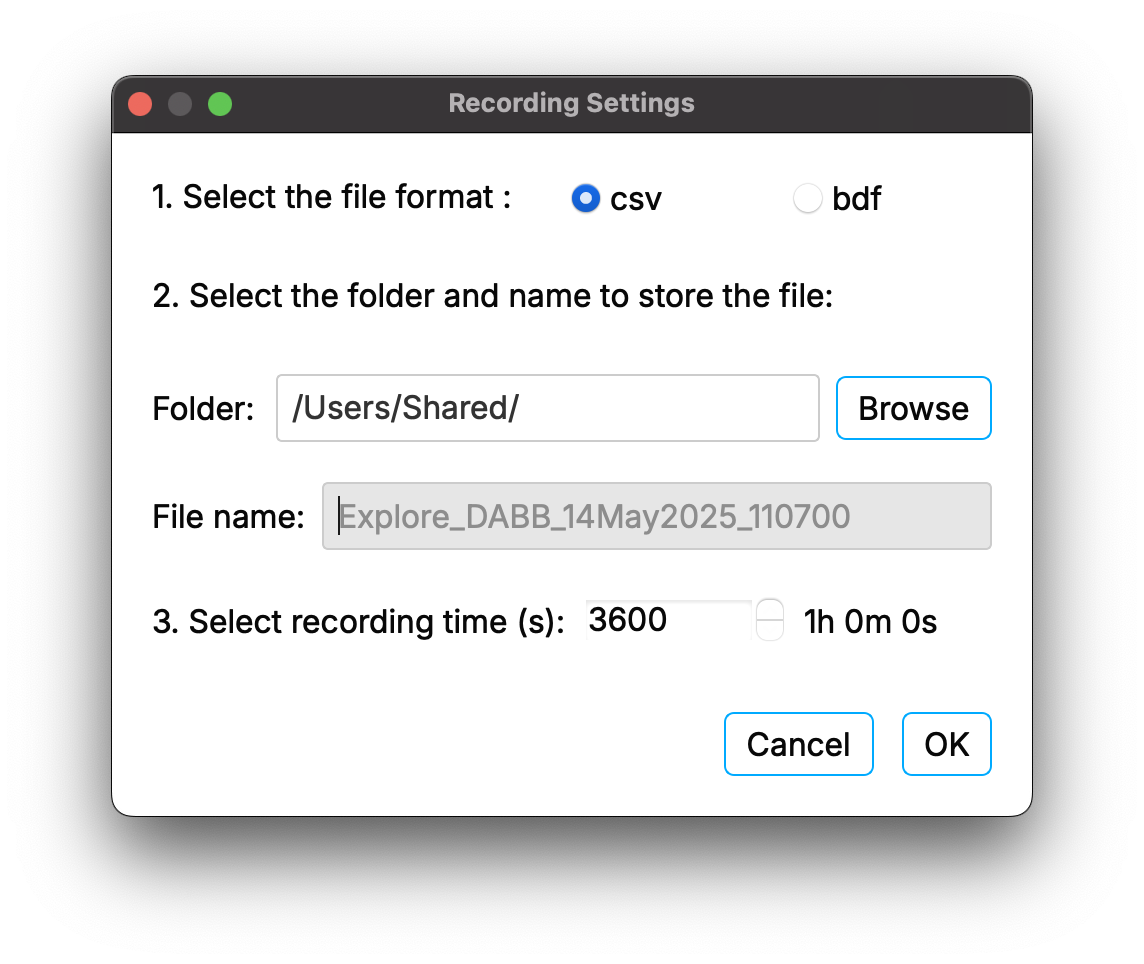
Configure your recording using the pop-up.
You can inspect an ongoing recording while recording.
To do so, go to:
Tools > Inspect ongoing recording
Then zoom in or out by hovering the mouse over the X-axis or Y-axis.
| Environmental factors, such as temperature, can affect the sampling rate. We recommend computing the sampling rate of your recorded data. |
If you find a deviation between the sampling rate you calculate and the sampling rate shown in Explore Desktop, resample your signal to correct for drifts.
The timestamps in the CSV or EDF file can be used to compute the resampling factor.
| If you are setting markers in your recording, record to CSV. Alternatively, push data to LSL and record with LabRecorder. EDF cannot guarantee precise marker timings. |
For more information or support, contact support@mentalab.com.