Visualization
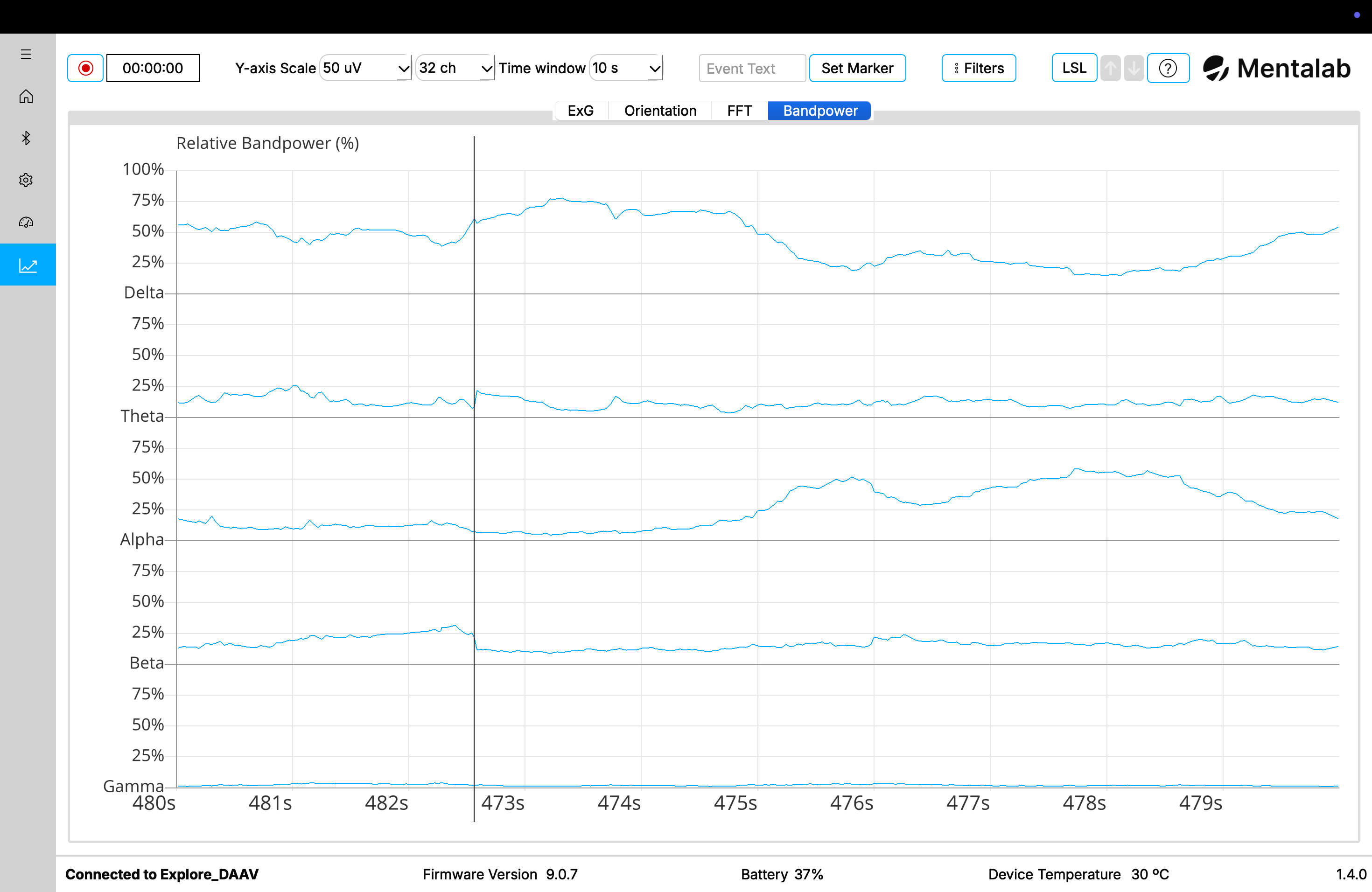
Visualize ExG, orientation, spectral analysis, and relative bandpower data in real time by navigating to the Visualization page.
You can configure the visualization using the drop-down menus at the top of the Visualization page or by selecting Filters.
The available settings include:
-
Y-axis scale— changes the range of the y-axis.-
Available range:
1 uVto100 mV
-
-
Visible channel count— changes how many channels are visible in the plot.-
Available options:
1,2,4,8,16, and32channels, depending on the connected device
-
-
Time window— changes the time interval of the x-axis.-
Available options:
5,10, or20seconds
-
-
Record— see the Recording page. -
Event markers— see the software marker section on the Event Markers page. -
Filters -
ASR— reduces artifacts in the signal in real time. See the Artifact Subspace Reconstruction page. -
LSL integration— see the Lab Streaming Layer page.
ExG
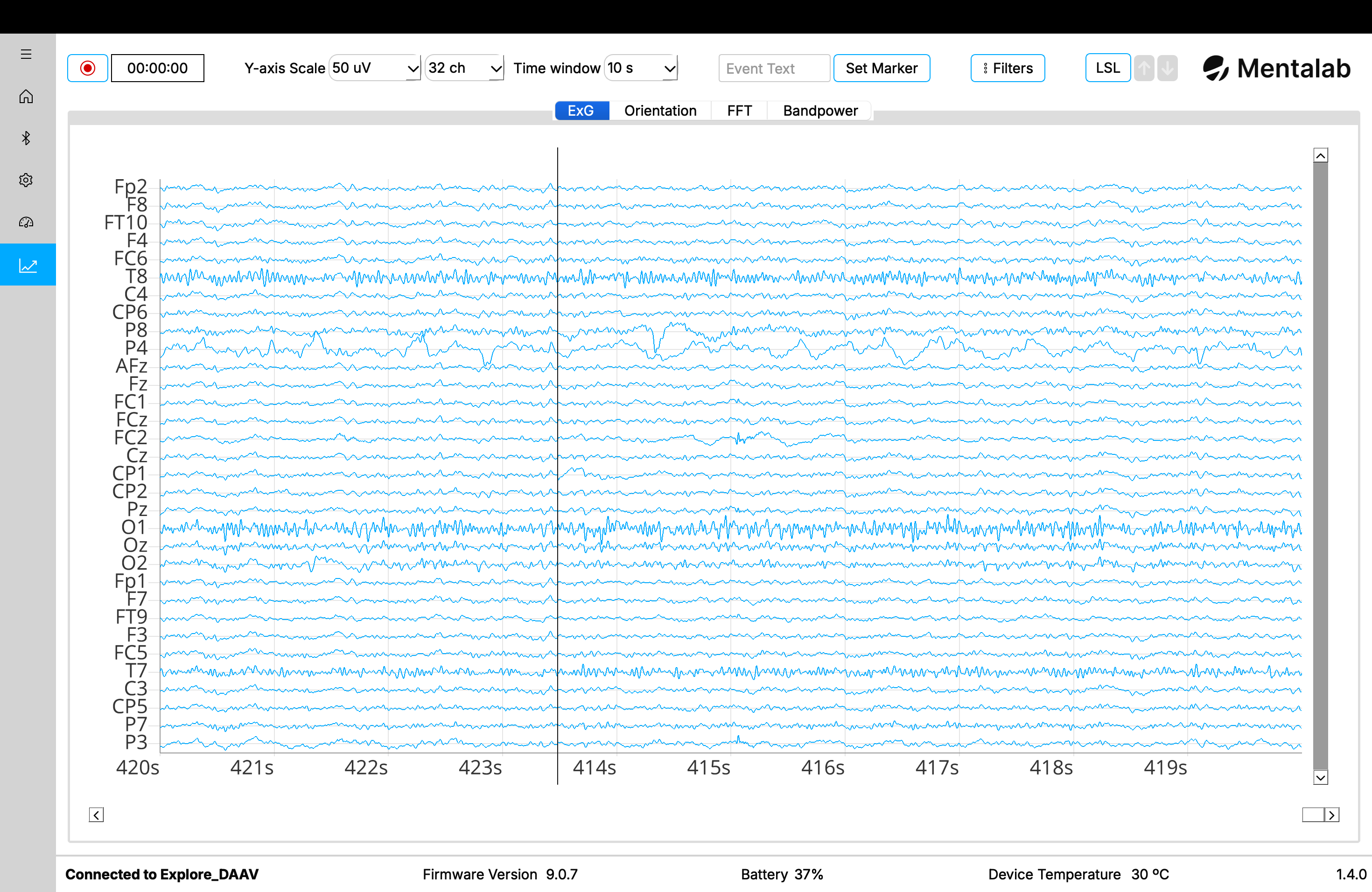
It is also possible to scroll back in time when visualizing signals.
| Changing the sampling rate during visualization may lead to unexpected behavior when scrolling back in time. |
Real-time packet loss visualization
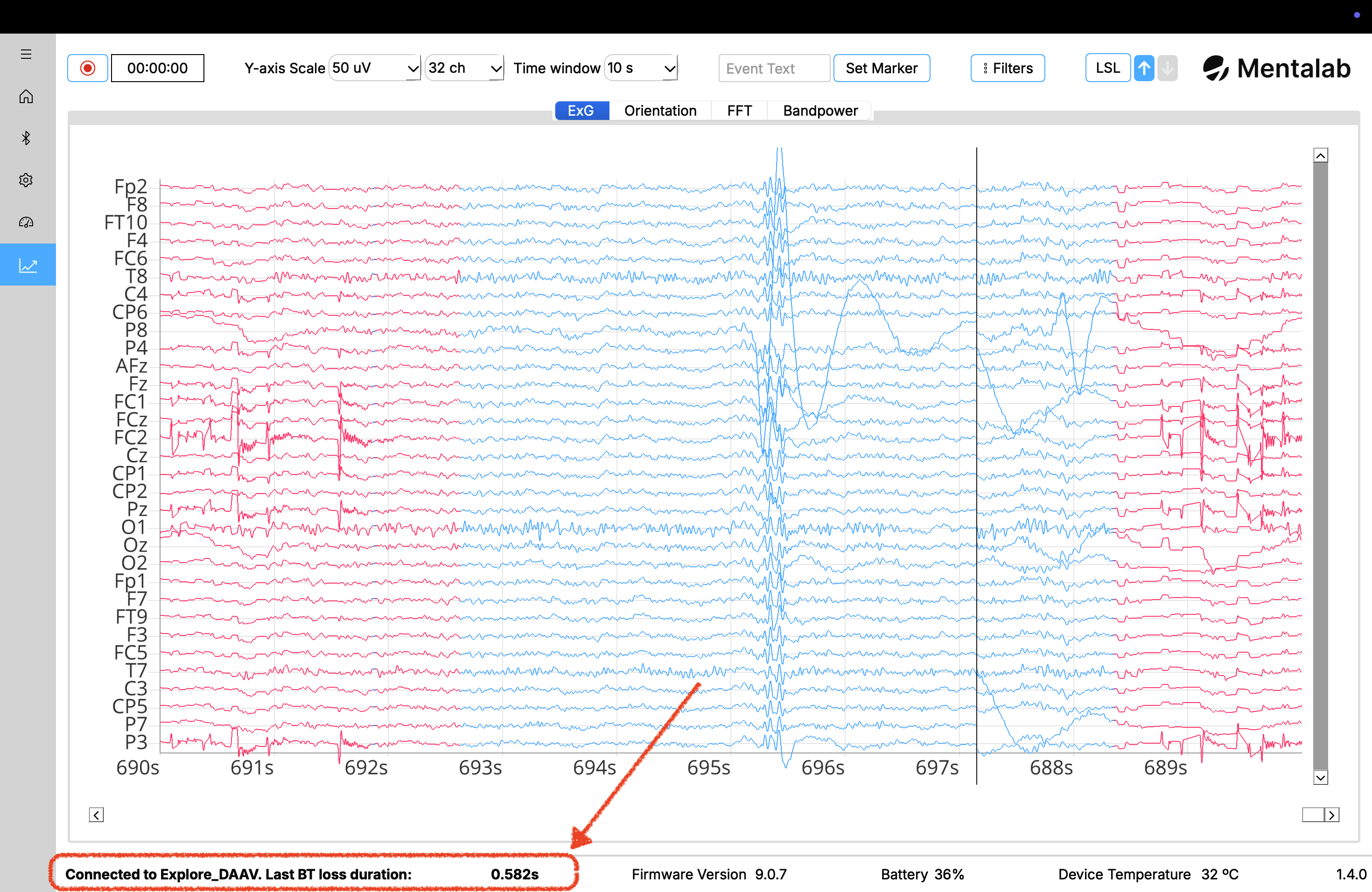
The Visualization page displays packet loss in real time.
Packet loss is indicated as samples lost in seconds. For Bluetooth streaming, the number of samples lost in seconds is shown in the footer.
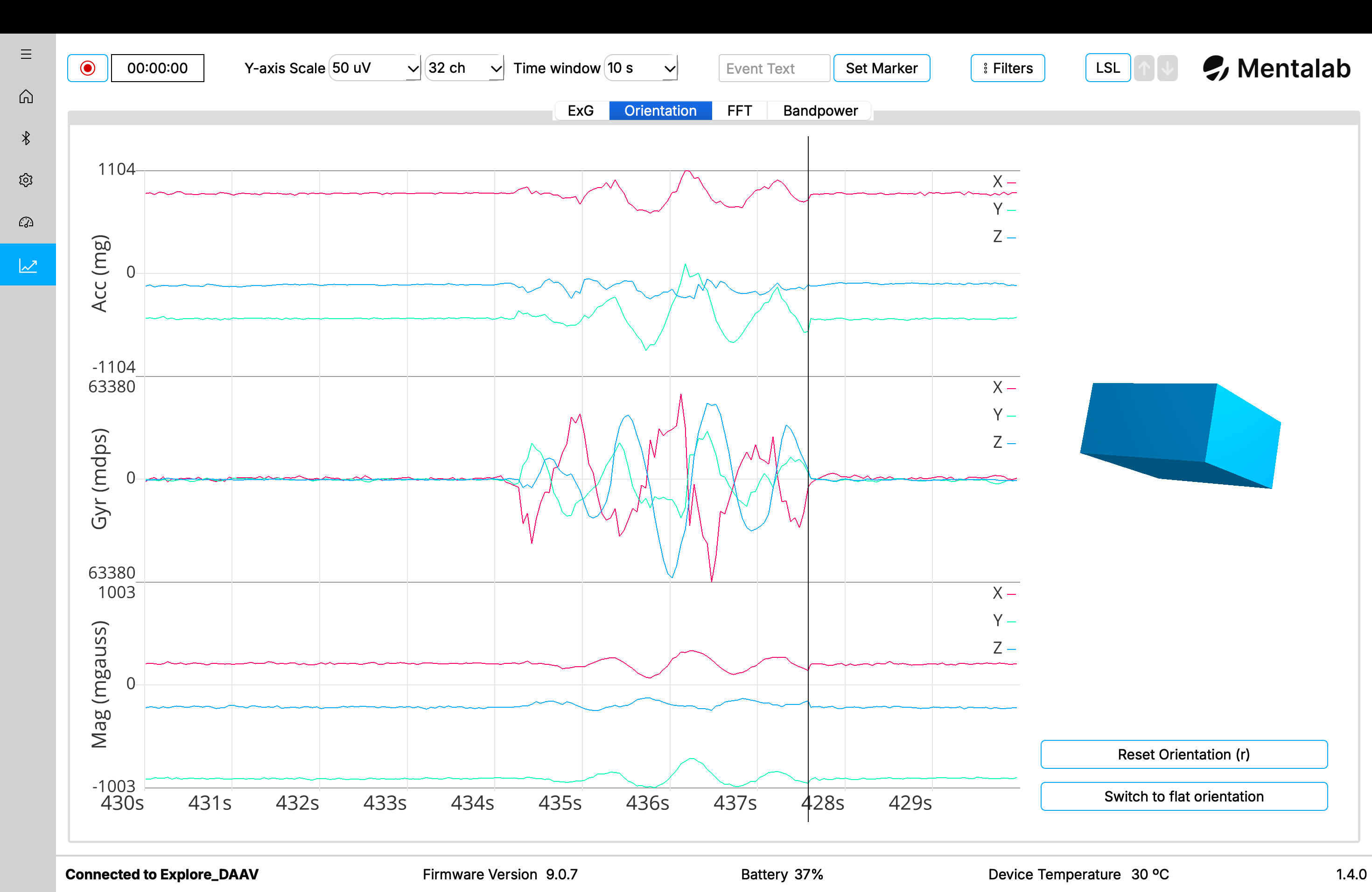
Spectral analysis
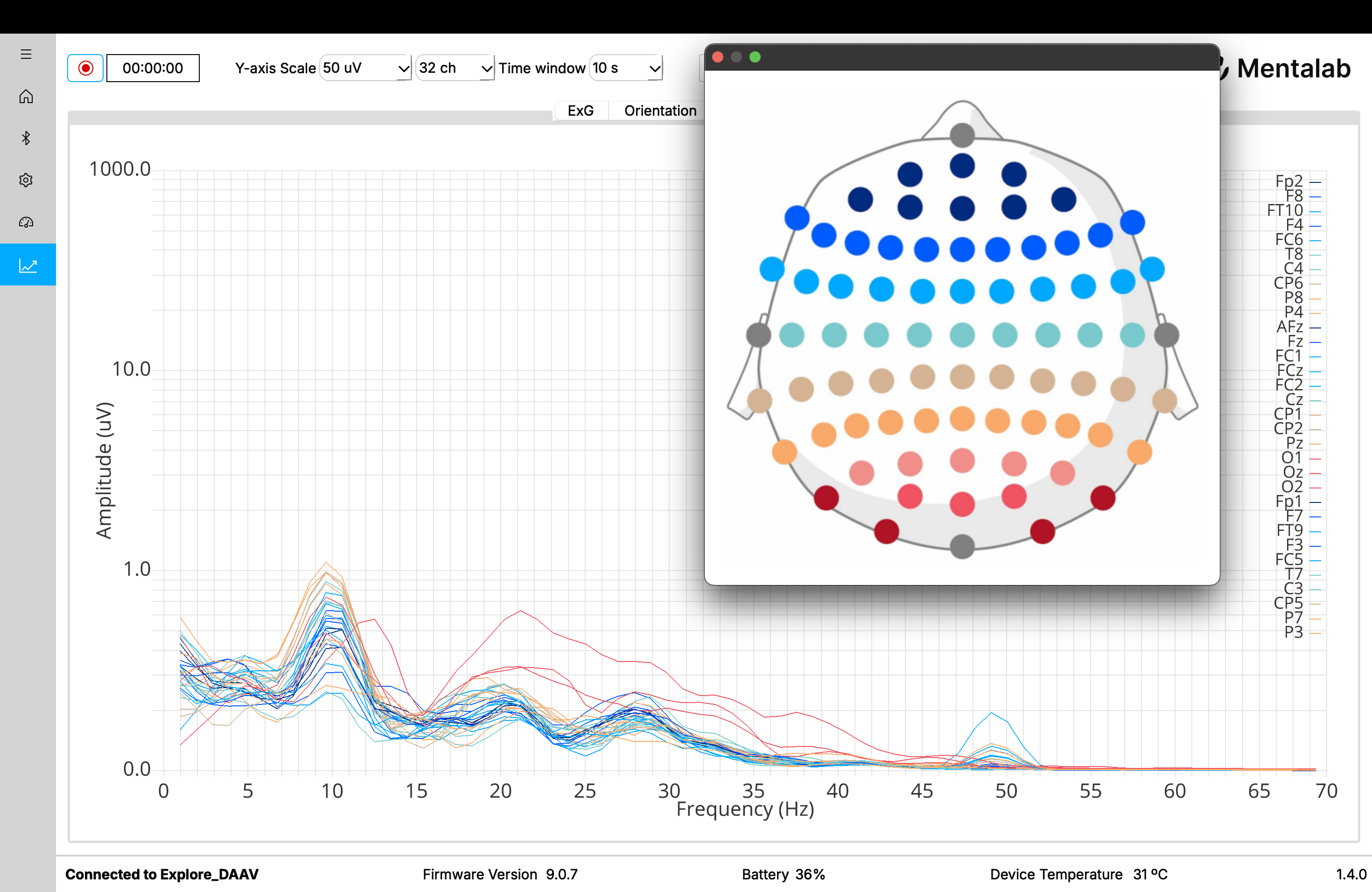
The spectral analysis plot is calculated using the FFT, meaning Fast Fourier Transform.
The colours of the channel lines map to positions on the head if standard positions are selected using the 10-10 system.
If a channel has no standard position name assigned, it uses a colour from a default colour scheme.
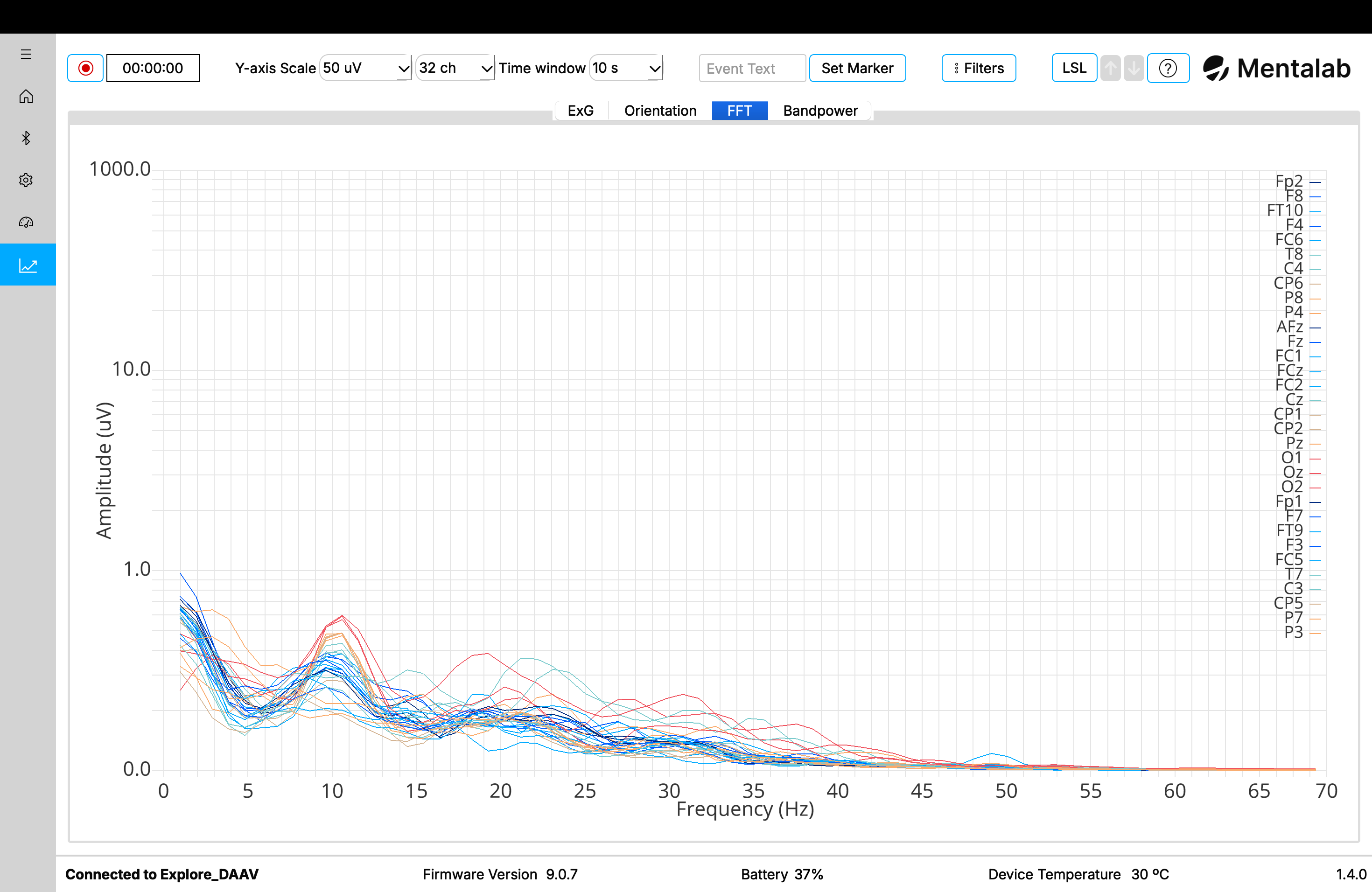
The colour map for the standard positions can be shown by clicking the ? button above the plot.
Filters
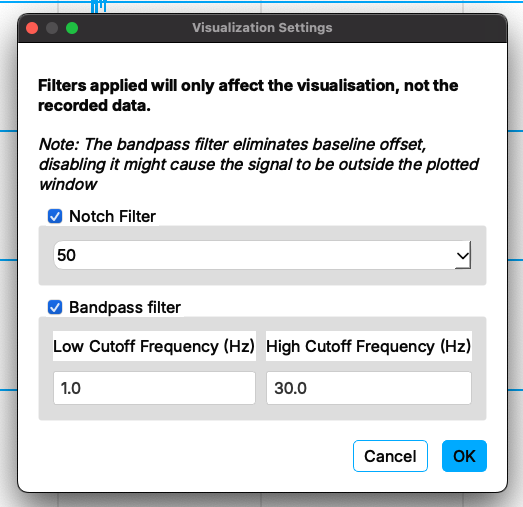
Set the visualization filters using the pop-up.
The Visualization page prompts you to define your visualization filters. Explore Desktop begins streaming data once you have selected your filters.
You can still filter signals while the device is streaming. To do so, select Filters.
The following filters are available:
-
Notch filter— band-stop filter that attenuates power line noise at50 Hzor60 Hz. -
High-pass filter— rejects signals with frequencies below the threshold. Use theLow Cutoff Frequencyfield to set a high-pass filter. -
Low-pass filter— rejects signals with frequencies above the threshold. Use theHigh Cutoff Frequencyfield to set a low-pass filter.
You can leave either the Low Cutoff Frequency field or the High Cutoff Frequency field empty to use a high-pass or low-pass filter instead of a band-pass filter that uses both cut-offs.
| Filters do not affect raw data. They only affect what is visualized. |
For more information or support, contact support@mentalab.com.