OpenViBE
This page provides information on how to acquire data from Explore devices using OpenViBE.
Prerequisites
- Windows (OpenViBE is not compatible with macOS, to run OpenViBE on Linux, you need to build it yourself)
- An Explore device
- OpenViBE
- Explore Desktop
You can also use Explorepy instead of ExploreDesktop to push data for acquisition with OpenViBE. We recommend using Explore Desktop as it is easier to set up and allows visualizing incoming data.
How to acquire data from Explore devices with OpenViBE
Data acquisiton from the Explore device is not supported directly in OpenViBE, instead, data can be acquired using the Lab Streaming Layer (LSL).
If you want to use Explorepy instead of Explore Desktop, skip steps 1 and 2. Instead, use Explorepy’s push2lsl command to connect to your device and push data from it to LSL.
- Launch Explore Desktop, connect to your device and go to the visualization screen.
- Click on the LSL button to launch the LSL menu and click on Push data to LSL. This will make your data available as streams on the network.
- Launch the OpenViBE Acquisition Server that comes with the OpenViBE installation.
- In the OpenViBE Acqusition Server, select the LabStreamingLayer driver from the Driver drop-down menu.
- Click on Driver Properties and select the Explore device’s ExG stream in the Signal stream drop-down menu.
string whereas OpenViBE only supports the type cf_int32, thus the marker stream from the device cannot be acquired with OpenViBE. If you need markers coming from Explore Desktop or Explorepy in OpenViBE, please reach out to us.
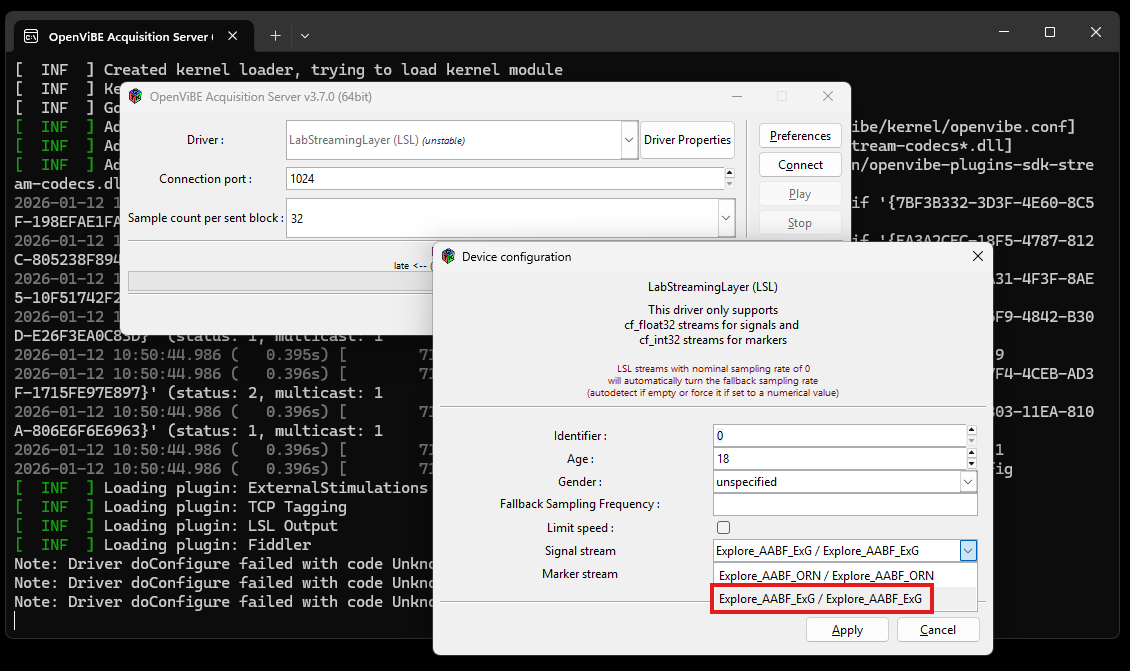
- Click on Connect to connect the server to the LSL stream and then on Play to start streaming from the server.
- Launch the OpenViBE Designer.
- Add an Acquisition client node in the designer window. You can search and find nodes in the menu on the right side of the application.
- You can now use this Acquisition client as-is to acquire and pass along data from the LSL Acquisition server that you have started in step 6.
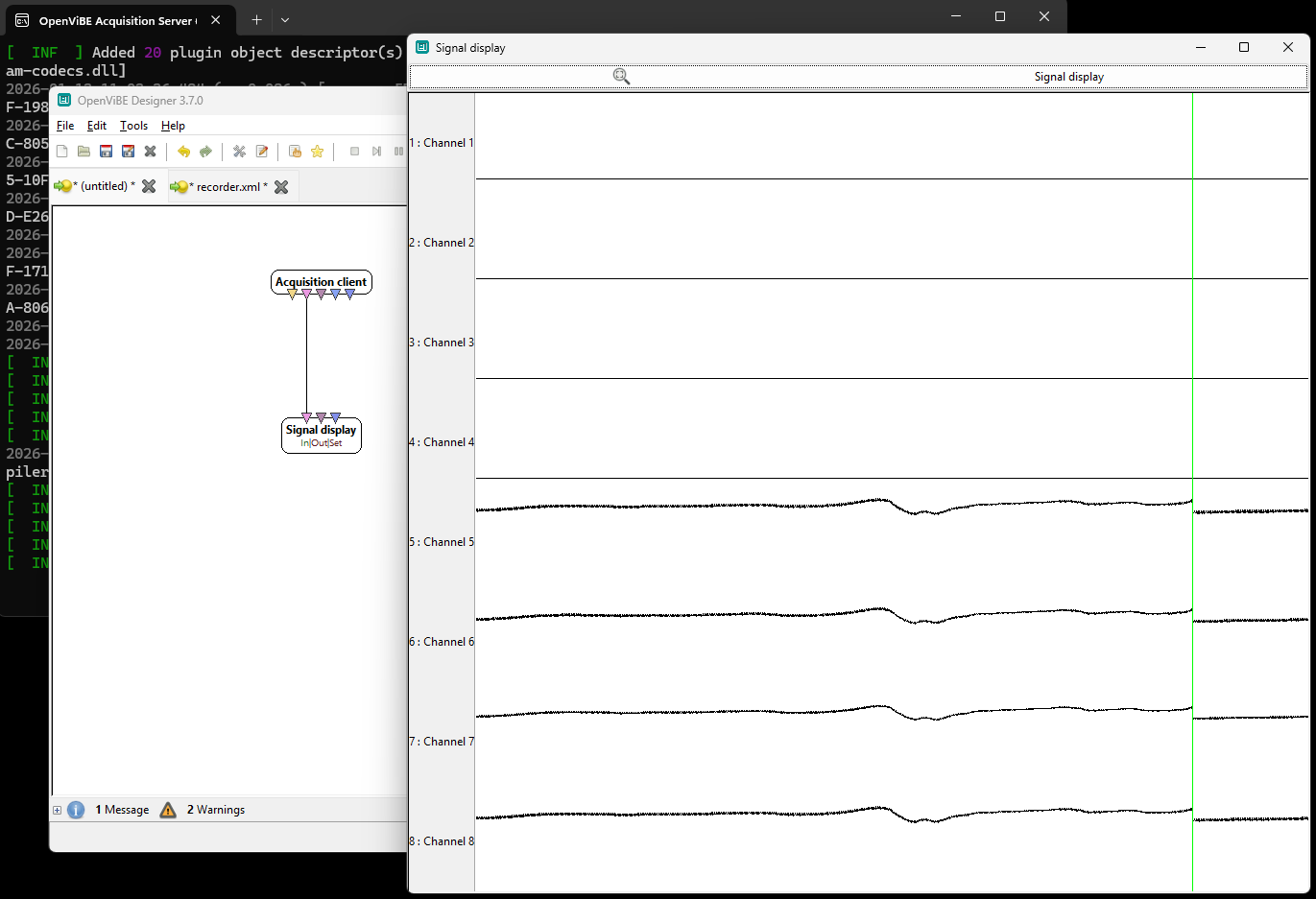
You can now feed the Signal stream output from the Acquisition client node to other nodes in OpenViBE Designer. For example, you can test the pipeline by connecting the client to the Signal display node to visualize the incoming channels.
- Search for Signal display in the menu on the right of OpenViBE Designer.
- Add a Signal display node in the designer.
- Connect the Signal stream output (symbolised as a pink, upside-down triangle) of the Acquisition client to the Data input (also symbolised as a pink, upside-down triangle) of the Signal display node.
- Start the execution of your pipeline by pressing the play button in the toolbar of OpenViBE Designer.
You should now see the data streamed from your Explore device show up in a new window.
For more information or support, do not hesitate to get in contact at: support@mentalab.com